Before clearing your old phone, confirm the new device can complete verification for the relevant accounts. If the old phone is lost, jump to recovery. Google Authenticator users should also know that deleting a synced entry can delete it from other synced devices.
List the accounts affected by the move
Include email and password-management services, not just your exchange. If the recovery inbox depends on the old authenticator too, moving one exchange entry does not resolve the whole access problem.
Distinguish a short-lived code from a setup key or QR that can generate future codes. Recovery codes follow each service's rules, while passkeys have their own device and sync behavior. Label protected backups with the service and date; “verification code” is too vague.
Find any recovery step that still depends on the old phone
Suppose exchange access uses Authenticator, Authenticator sync uses a Google Account, and that Google Account can only be verified on the old phone. Sync being enabled does not solve the first login after losing that phone. Start your check by asking how you would begin without it.
Keep account hints and recovery methods in the inventory, not passwords or changing codes. Similar entry names need enough service and account detail to distinguish them.
| Access needed | Question before moving |
|---|---|
| Exchange account | What verifies access besides the password, and where does recovery start? |
| Sync account | Can I sign in without the old phone? |
| Recovery email | Can a trusted device read it, and are its recovery methods usable? |
| Stored recovery material | Does unlocking it depend on the phone being replaced? |
Old phone available: identify the transfer method
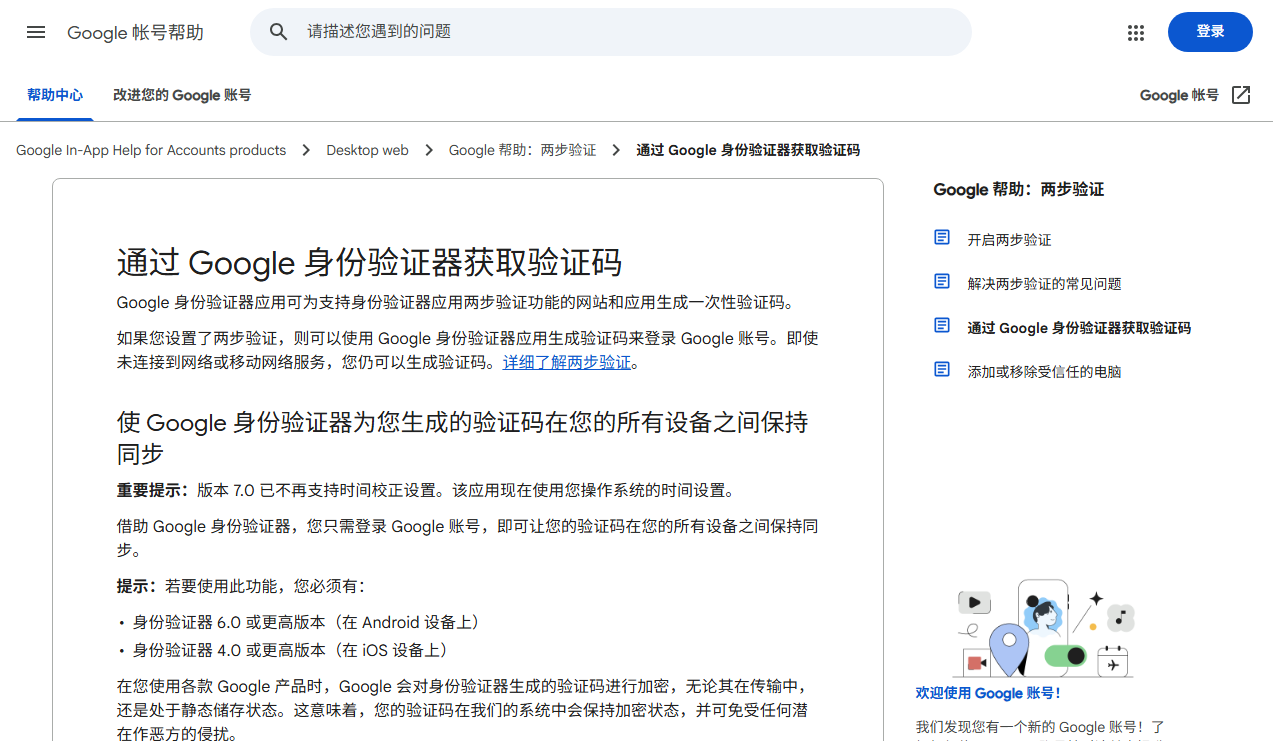
For Google Authenticator, entries saved to a Google account can sync after sign-in on the new device; entries used without sync can be exported from the old device and imported. Follow the official instructions. Other authenticators need their own documentation.
Treat the export QR as secret material. Scan it directly with your own new device, not a chat app, shared photo album or online QR reader. After the entry appears, verify it on a trusted official account page using a supported security check that does not move funds. Do not test with a withdrawal.
If a code fails, check the entry, account, expiry and phone's system time. Current Google Authenticator uses system time, so an old instruction to find in-app time correction may not apply. Keep a trusted working session and the old device while investigating.
Two entries with the same name are not a reason to delete one
They might be duplicate imports or two accounts with the same label. Compare the service, account hint and your earlier records, then verify at the corresponding official account. Deleting an entry to see what still works is particularly risky when deletions sync.
Different digits at one instant do not settle the question either. Check the account, generation time and system time. When asking for help, an entry name and error message are enough; the setup key need not leave your devices.
Lost phone: restore your access and address lost-device access
Use valid sync or recovery material through the tool's official flow if available. Without it, request a reset from the service you cannot access: the exchange for its account, the email provider for its mailbox. The authenticator app cannot recover every service for you.
Start from a trusted session that still works.
Use it to inspect recovery options without deliberately signing out. It does not guarantee exemption from identity checks or current security restrictions. Do not plan an urgent withdrawal around another person’s recovery time.
If the phone was stolen or may be unlocked by someone else, restoring access is only part of the task. Use device and account providers' official procedures to lock the device, revoke its access or replace affected factors. Do not leave someone else's access active simply to preserve a session.
A recovery application can involve proving account ownership and establishing a new verification method. Completing one does not establish that every old device has lost access. Read the post-recovery tasks and check devices, notifications and recovery settings separately.
If access is still unavailable, stop planning an immediate payment around it. Explain whether you lost the phone, phone number or recovery material; “the authenticator broke” is too vague. Do not borrow a stranger's account or send identity documents to someone promising faster approval.
Preserving a useful session is advice for trusted devices. It is not a reason to leave a stolen, accessible phone connected.
Text codes, email and passkeys need the same pass
A phone swap touches more than one app.
SMS verification follows the number and the SIM, not the handset. If you also change the number, move from a physical SIM to an eSIM, or leave the old card unactivated in a drawer, the route that delivers codes is cut before you start. The safer order is to confirm the number receives text messages on the new phone, then change verification settings on accounts.
Email is the line most often skipped. Plenty of recovery flows end at an inbox, and that inbox may carry two-factor verification of its own. If that step also lives on the old phone, the chain loops back to where it started. Treat the mailbox as an account that has to be migrated in its own right.
How a passkey moves depends on where it is kept: the system password manager, a browser account, or a separate app. It generally travels with that keeper rather than with the authenticator. Give it its own line on the list, noting whether an account uses an authenticator, a text code or a passkey, and where each one is recovered from. Recorded together as “two-factor,” they become hard to tell apart on the day it matters.
Will the backup still be available without the phone?
Ask two questions: can you retrieve it when the old device is unavailable, and can somebody else retrieve it through a shared folder or compromised inbox? Material stored only on the old phone fails the first test; exposed plaintext keys fail the second.
Rebinding an authenticator and moving an existing entry are different operations. After rebinding, update recovery material under the account's rules instead of assuming an old setup key still works. Manage one-time recovery codes separately. A setup QR does not become harmless merely because the visible time-based code has changed.
One more suggestion about order: get one account working on the new phone before starting the next. Migrating every entry at once makes it hard to tell which step went wrong; one at a time is slower, but each result can be checked immediately. Through all of it, do not reset the old phone yet. Until the new device verifies successfully, it is your only way back.
A backup that opens may still be the wrong version
Suppose you rebound an account last month but kept a file called “exchange QR.” Being readable does not establish that it contains the current setup. Record the setup date and an account hint without putting the secret in the filename.
Encryption helps protect stored material, but you must still be able to unlock it. A backup accessible only through the missing phone cannot solve that phone's loss. Offline copies have their own maintenance needs: paper can be damaged, storage can fail and other people may find it. Choose a method you can actually maintain.
Review material on devices you control. Do not upload setup QR codes to recognition services or leave them on shared printers. If setup material has leaked, follow the affected service's process to replace the verification method; deleting your photo does not delete someone else's copy.
Do not confuse deleting an entry with retiring a device
Google's instructions state that deleting a synced authenticator entry deletes it across synced devices. Successful verification on the new phone does not make it safe to delete entries one by one on the old phone.
Confirm access and recovery first, then follow the device maker's handover or erasure process. Google says “Use Authenticator without an account” removes the saved codes from your Google accounts and stores them on the current device; they will no longer be available on your other devices. Do not use this option to try to sign out only the old phone.
Review email, password manager, cloud account and other sessions when handing over the device. Remove obsolete device access after the move. Where practical, change phone number, email and authenticator separately and verify each change. For uncertain security notifications, use the message-verification guide.
For a sale, gift or recycling handover, check access and recovery before clearing the phone, then inspect old-device access from accounts you can still use. An app icon disappearing does not establish secure erasure.
A completed move leaves important accounts and recovery methods usable by you. It requires neither a test withdrawal nor showing your backup to the person helping move your files.